 Invoice Autopilot
Invoice Autopilot sends no emails of its own. Your customers reach their documents in three ways:
1. In the customer account
If your shop uses the new customer accounts (Shopify › Settings › Customer accounts), the Invoices action appears automatically on the order page of the customer account. Customers download their finished invoices and credit notes there as PDFs.
For the order status page, open Settings › Checkout in Shopify, choose Edit on your checkout configuration, switch to the Order status page at the top, add the Invoice history app block and save. The app’s overview shows whether this is set up.
Classic customer accounts are not supported. The link in the order confirmation still works.
2. Link in the order confirmation (recommended)
Under Templates › How customers get their invoice you find 1. Link in the order confirmation (recommended). Copy the code, open Settings › Notifications › Customer notifications › Order confirmation in Shopify, choose Edit code and paste it below the order summary. Then check it with a test order.
The link works right away: if the invoice is not created yet, for example because payment is still pending, customers see a waiting page that refreshes itself.
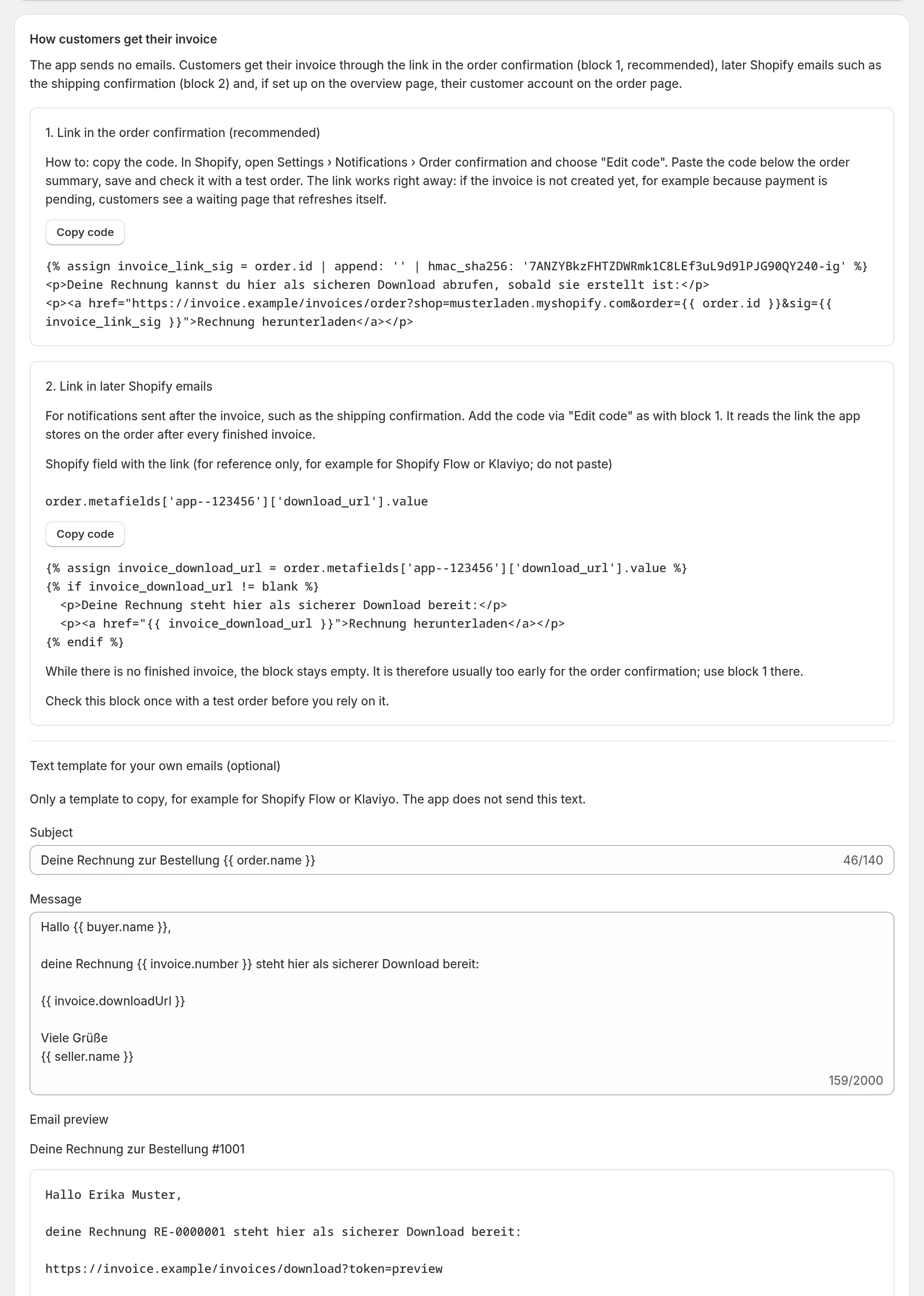
3. Link in later Shopify emails
2. Link in later Shopify emails is for notifications sent after the invoice, such as the shipping confirmation. The block reads the link the app stores on the order after every finished invoice. If there is no finished invoice yet, it stays empty; for the order confirmation, use block 1.
Your own emails with Shopify Flow or Klaviyo
Text template for your own emails (optional) is a template to copy. The app does not send this text itself. Your tool reads the link from the order field set under Advanced › Shopify order field for the invoice link.
Create a new customer link
Under Invoices › Recent documents, every invoice has Create new customer link. It prepares the customer link for that invoice: if the existing link is still valid, the app keeps using it. If it has not been stored on the order successfully yet, the app tries again – except for orders with an excluded tag. If storing fails, the app shows a notice. If a link was blocked after a privacy request, it stays blocked; blocked links are listed under History & catch-up › Blocked invoice links.