 Invoice Autopilot
Company and tax details
Under Settings › Company and tax details you enter the details shown as the sender on every invoice and credit note: company name, street, postcode, city, country, optionally an email for customer questions, plus Tax number (optional) and VAT ID (optional) – you usually need one of the two. Changes apply to new documents; documents already created stay unchanged.
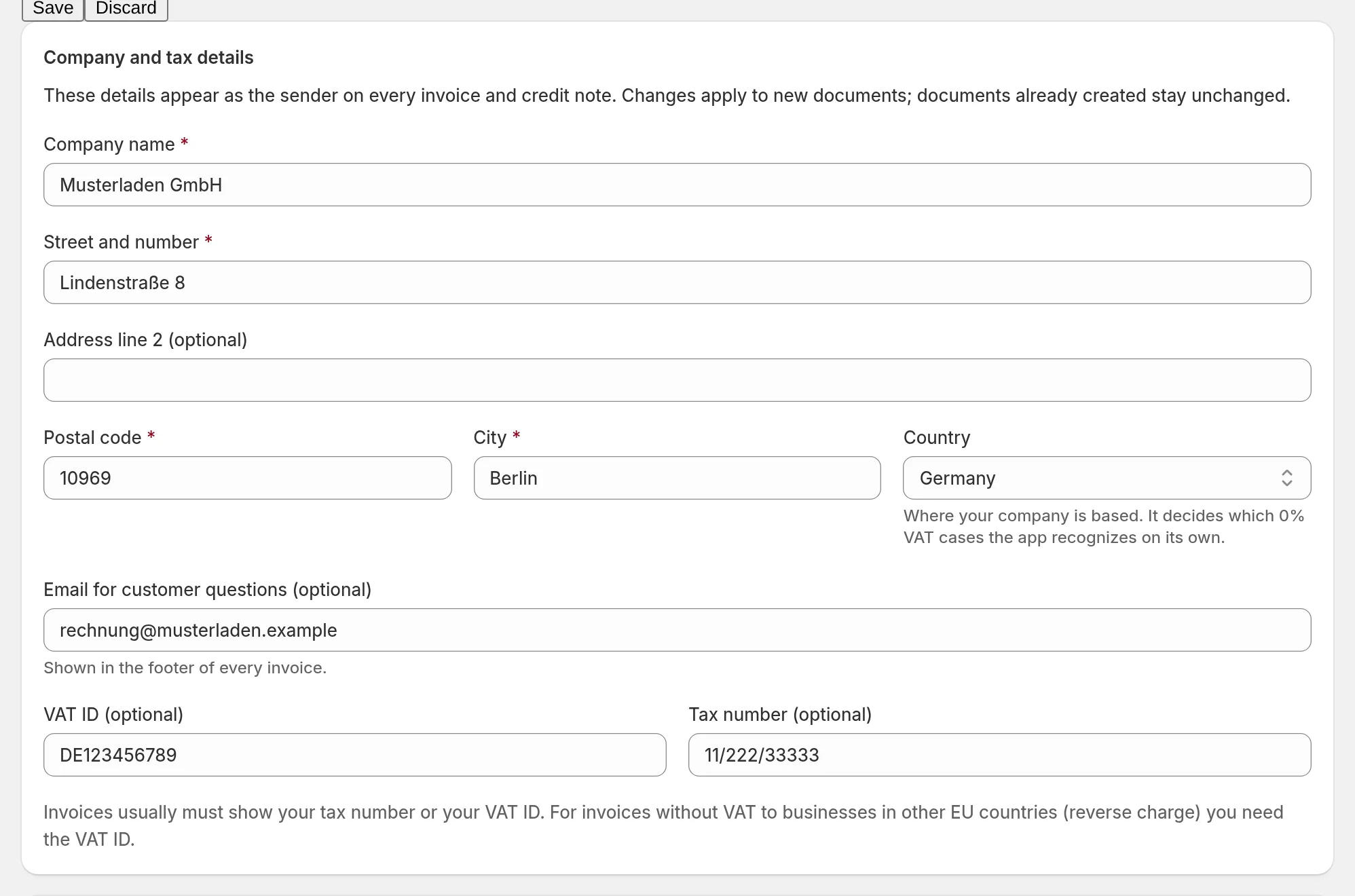
- Country is where your company is based. It decides which 0% VAT cases the app recognizes on its own.
- Invoices usually must show your tax number or VAT ID. For invoices without VAT to businesses in other EU countries (reverse charge) you need the VAT ID.
- If a required detail is missing, every invoice stops before an invoice number is assigned. The app shows what is missing under Still to do.
VAT rates come from Shopify
Invoice Autopilot does not set VAT rates of its own. It takes the rates and amounts of products from the Shopify order and assigns each line a tax category, for example standard VAT, export or reverse charge. Only for shipping with mixed VAT rates does the app re-split shipping according to your setting (see below); the gross shipping amount stays the same.
Shipping with mixed VAT rates
If an order contains products with different VAT rates (for example 7% and 19%), you decide under Advanced › Taxes › Shipping costs for products with different VAT rates how shipping is split:
- Split by goods value across the VAT rates (recommended)
- Use the tax as Shopify calculates it
- Assign fully to the VAT rate with the highest goods value
Clarify a change with your accountant; it applies to all new invoices. Several VAT rates on a single product line are not supported; the app holds such orders.
Invoices with 0% VAT
For sellers based in the EU, the app recognizes exports outside the EU and reverse charge to businesses in other EU countries on its own. For both cases you add a note that appears on the invoice.
If Shopify calculates 0% but no reason is recognizable, you choose under If Shopify calculates 0% but no reason is recognizable:
- Hold the invoice and show it for review (recommended)
- treat it as an export outside the EU, as tax-exempt or as reverse charge – each with a note
The buyer’s VAT ID
The app looks for the buyer’s VAT ID in the usual Shopify fields and then in company, name and address lines of the billing and shipping address. If your checkout uses its own fields, enter their names under Advanced › Buyer VAT ID.
The app checks only the format of the VAT ID, not whether it is valid (no VIES check). You remain responsible for whether reverse charge or an exemption really applies.